

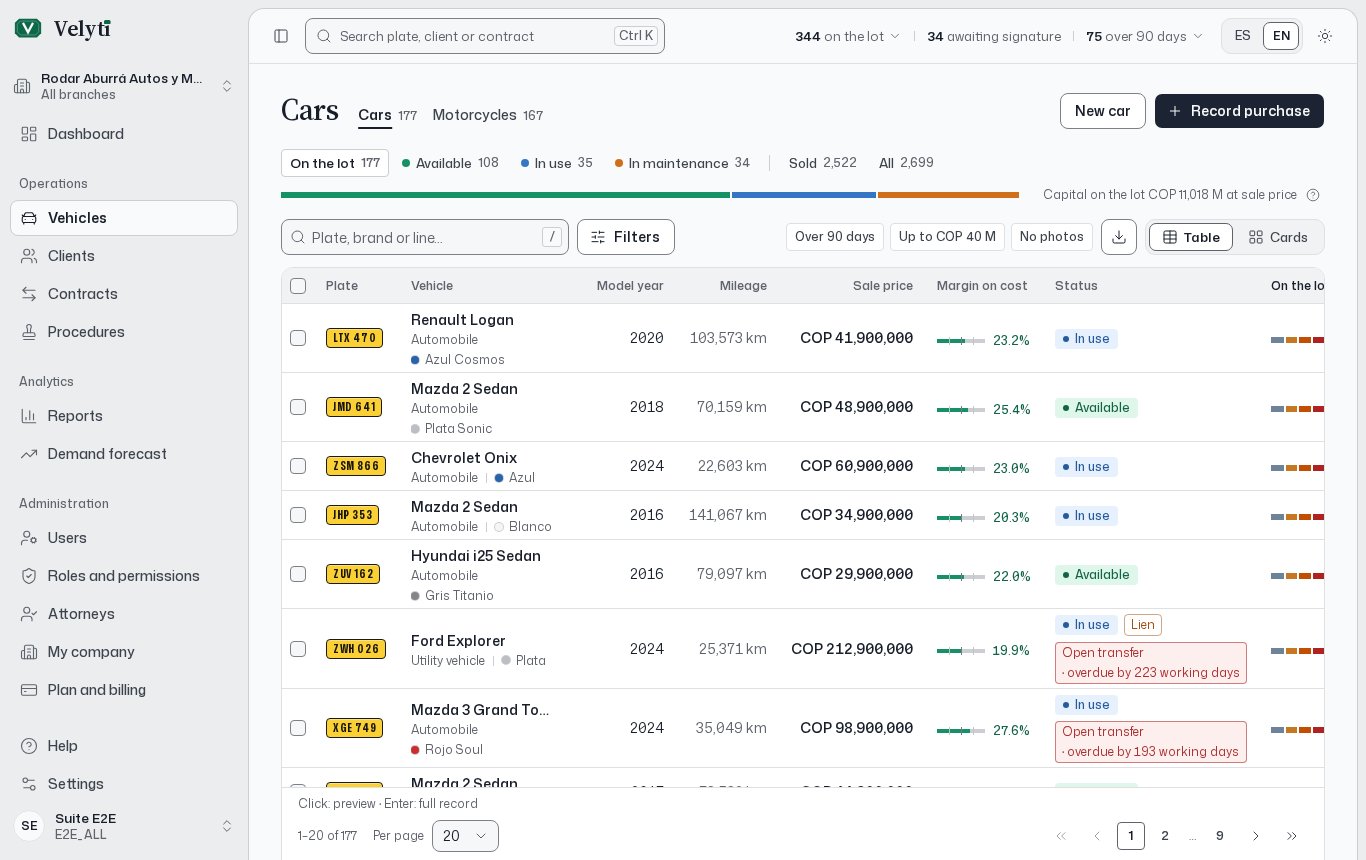
The Cars list, on the lot, in table view.
You need the read permission for each list: one for cars and a separate one for motorcycles. If you only have one of them, you only see that list. Your administrator manages this in Users and roles.
Read the list
Above the table, the composition bar shows how many units are On the lot and how they split by status: Available, In use, In maintenance, In repair and Inactive. Click a status to show only those vehicles. Sold and All show the rest. In repair and Inactive only appear when there is at least one. Each row shows the plate, the vehicle (brand, line and class), the model year, the mileage, the sale price, the margin, the status and the time On the lot. The table adapts to your screen: on a narrow screen the same data appears as cards, and View lets you switch between Table and Cards. Click a row to open a side summary with the key facts. From there, Open record takes you to the full vehicle record.Days on the lot
On the lot counts the days since the vehicle arrived. The list also tells you the next checkpoint:
Past 180 days the list shows how many days it is over. For sold vehicles it shows Sold in the number of days it took.
Vehicles are grouped in bands: Up to 30 days, 31 to 60 days, 61 to 90 days, 91 to 180 days and Over 180 days. Each band shows its units and amount. The Lot map gives the same picture with one tile per unit, the oldest at the back.
Search and filter
Use the search box (Plate, brand or line…) to find a vehicle. If nothing matches in the current status, Search every status repeats the search across all of them, and you can also search in the other list. To find a vehicle from anywhere in the app, use Search plate in the header (on a phone, in the bottom bar), or press Ctrl K. Filters narrow the list by:- Brand, Line, Model year, Mileage and Sale price (ranges use From and To).
- Days on the lot.
- Class, Bodywork, Fuel, Service, Transmission and Capacity.
- Transit agency and Registered owner.
- Photos: With photos or No photos.
- Price: Below cost.
- Alerts: With active alerts or Without active alerts, and the Alert kind.