

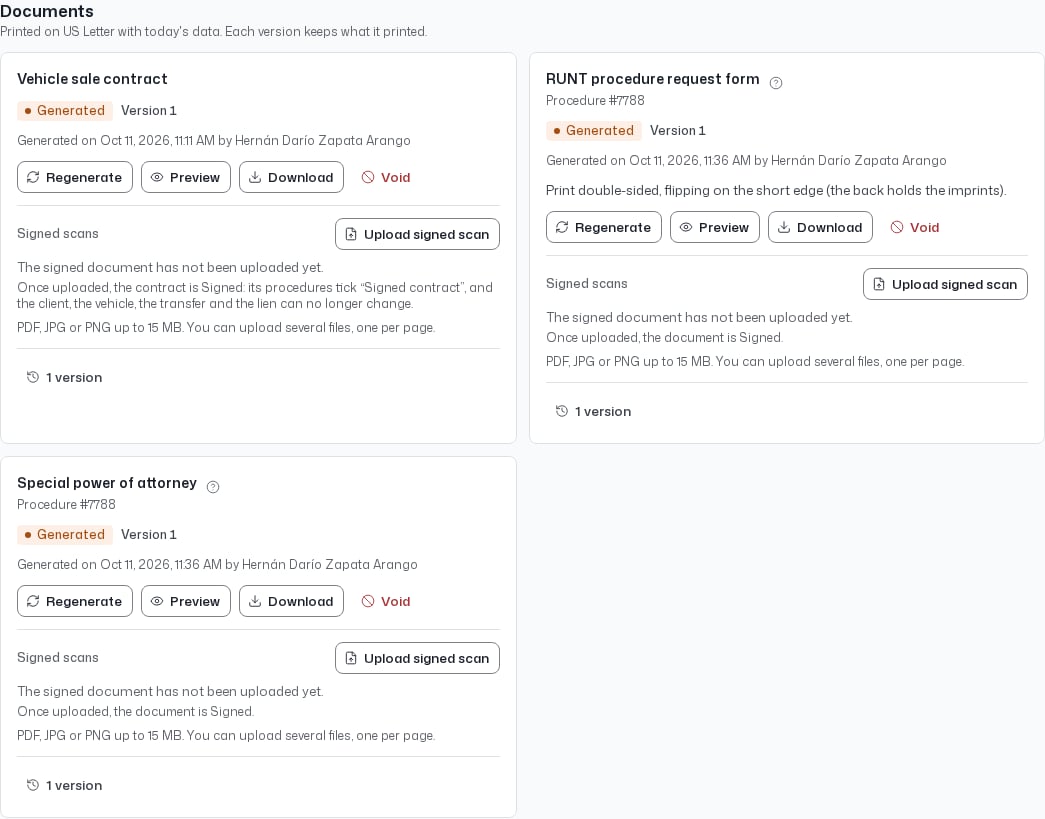
The Documents section of a contract.
You find the contract’s documents on the contract’s record (see Contracts), and the RUNT form and the power of attorney on the procedure (see Procedures). Each version keeps what it printed, so a later change to the data never alters a document already generated.
Generate a document
1
Read the check
Before generating, Before generating lists what is still Missing and what you should Check. When everything is in place it says The data is complete.
2
Complete what is missing
Each item has a link such as Fix, View the procedure, Assign an attorney or Complete the legal entity. You cannot generate the document while something is missing.
3
Generate
Select Generate. The document appears as Version 1, with the date and the person who generated it.
4
Review and print
Use Preview, Download or Open in a new tab. Print at 100 % on US Letter, without fitting to the page. The RUNT form is printed double-sided, flipping on the short edge, because the back holds the imprints.
Nothing is ever cut short. If a value does not fit its space on the form, generation is blocked: shorten the value in its record (name, address, conditions or limitations) and generate again.
Regenerate after a change
If the data changed after you generated a document and it is not signed, it is marked Out of date, with the fields that changed. Select Regenerate: the earlier version is voided and a new one is generated with the current data. If the earlier version was already signed on paper, do not regenerate it. Upload its signed scan instead and it becomes Signed.Signed scans
After the document is signed on paper, scan it and select Upload signed scan. You can upload PDF, JPG or PNG files, several if the document has several pages. The document status changes from Generated to Signed.- Signing the contract ticks Signed contract in its procedures’ requirements.
- Once the contract is signed, the client, the vehicle, the transfer and the lien can no longer change.
- The contract stays Pending after the upload. Select Activate contract when you are ready; see Contracts.
- If you delete the last scan, the document goes back to Generated, unsigned.
Void a version
A version is never deleted. To replace a signed document, or to stop using a version, select Void and write a Reason of between 3 and 300 characters. The voided version and its scan remain in the history under Versions, with the date and reason. A voided version is no longer printed or signed. If it was a signed original, the print-overs made on it are voided too. A changed signed document must be voided before another version can be generated.Open transfer
A purchase can leave the vehicle in the registered owner’s name until you sell it (traspaso abierto). In that case:- At the purchase, the owner signs the documents with the buyer left blank. For this the platform generates the Sale contract (registered owner).
- When you record the sale, the buyer’s data is added to the procedure.
- Only the missing data is printed over the signed sheets, as Print over the signed document. It carries the buyer, the attorney and whatever was pending.