

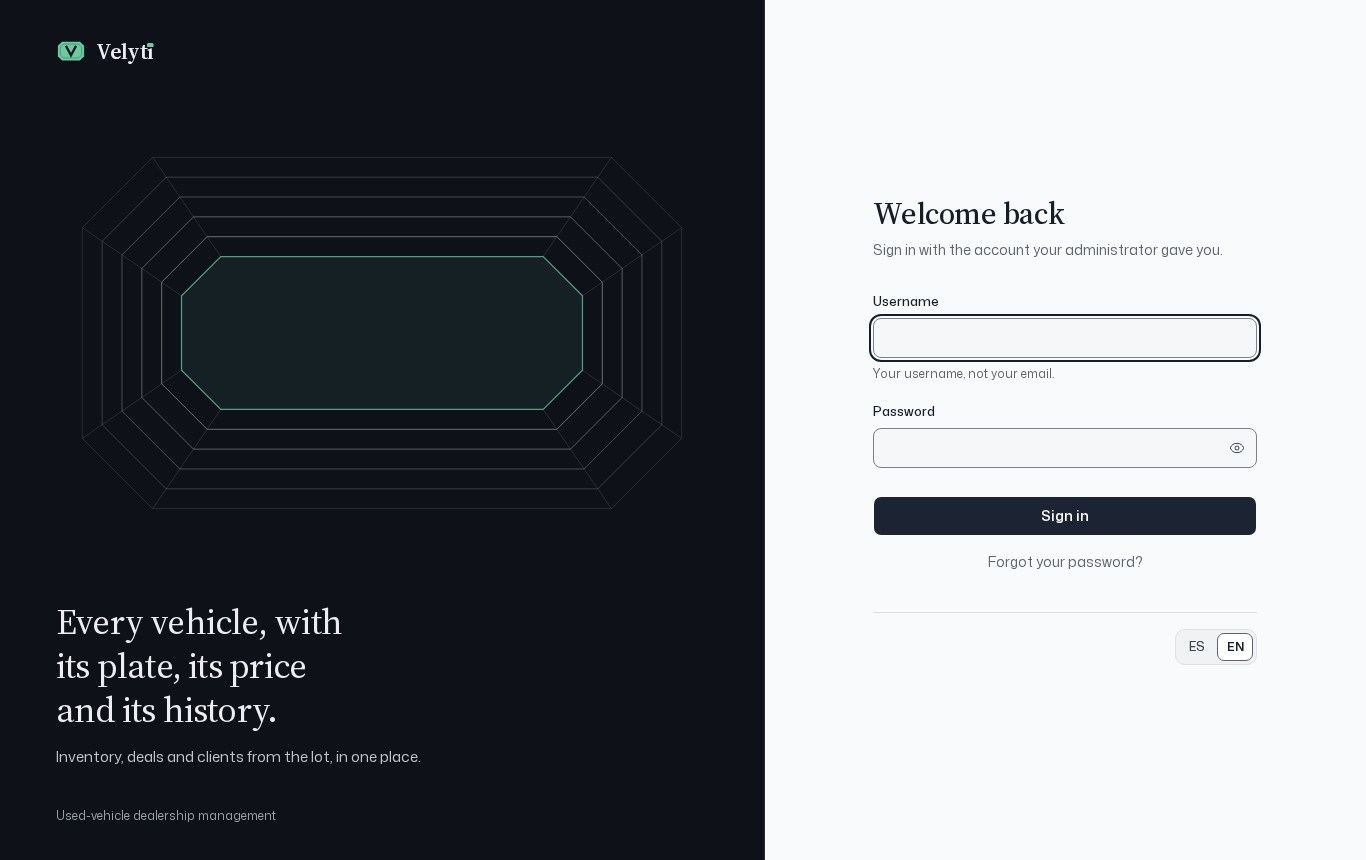
The sign-in screen.
Sign in
1
Enter your username
On the sign-in screen, type your username in Username.
2
Enter your password
Type it in Password. Use Show password if you want to check what you typed; Hide password covers it again. If Caps Lock is on, the screen warns you.
3
Sign in
Select Sign in.
If it does not work
- Wrong username or password. Check both and try again.
- Too many attempts. Wait a moment and try again.
- Your session expired. For your security, Velyti asks you to sign in again after a while. Sign in and continue.
Create your password from an invitation
When an administrator creates your user, you receive a link to set your password.1
Open the link
The page greets you by name and shows your username. Keep it: you will use it to sign in.
2
Choose a password
Type it in New password and again in Repeat the password. It must have between 8 and 72 characters. A long phrase is safer than a word with symbols.
3
Save
Select Save password, then go to the sign-in screen and enter with your username.
The invitation link works once and expires after 72 hours. The page shows the exact date and time it expires. If it no longer works, select Request another link; if you already set your password, just sign in with it.
Reset a forgotten password
1
Ask for a link
On the sign-in screen, select Forgot your password?. Type your username or your email in Username or email and select Send link.
2
Check your email
If there is an account with that username or email, Velyti sends a link to the email registered on the account. Velyti shows the same message either way, so it does not reveal which accounts exist. If the email does not arrive within a few minutes, check your spam folder.
3
Choose a new password
Open the link, choose a new password with the same rules (8 to 72 characters) and select Save password. Then sign in with the new one.
Reset links work once and expire after 60 minutes. If yours expired, select Ask for another link.