

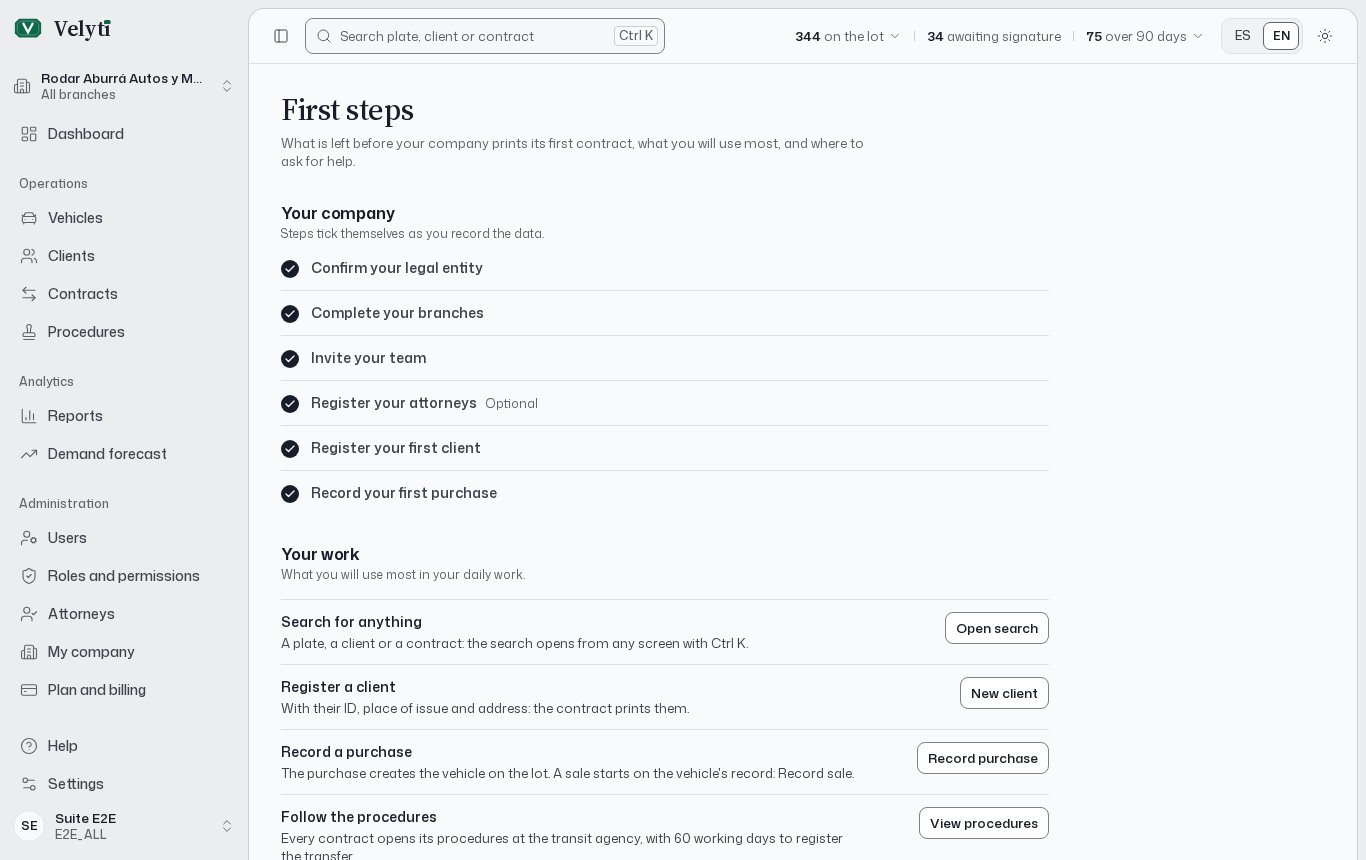
The First steps page of a company that is still being set up.
Set up your company
1
Confirm your legal entity
Velyti registered it when your account was created. Check the tax ID, the legal representative and the number of your first contract, then save. The action is Review legal entity. See My company.
2
Complete your branches
Each branch prints its address on the contracts and files with its transit agency. The step tells you which branch is missing which data. The action is Complete branch.
3
Invite your team
Create users for your sales advisors, purchase appraisers, accounting and management. Each one gets a link to set their password. The action is Invite a user. See Users and roles.
4
Register your attorneys
These are the filing agents and employees who file the procedures at the transit agency. The power of attorney names them. The action is Register attorney. See Attorneys.
5
Register your first client
Enter their ID, place of issue and address, because the contract prints them. The action is Register client. See Clients.
6
Record your first purchase
The purchase creates the vehicle on the lot and opens its procedures. The contract and the power of attorney print from it. The action is Record purchase. See Contracts.
What you will use most
Below the setup, Your work lists the daily tasks that match your role.- Search for anything. A plate, a client or a contract: the search opens from any screen with Ctrl K. See Find your way around.
- Register a client with New client.
- Record a purchase. The purchase creates the vehicle on the lot. A sale starts on the vehicle’s record, with Record sale.
- Follow the procedures. Every contract opens its procedures at the transit agency, with 60 working days to register the transfer. See Procedures.
- Print the documents. The contract, the power of attorney and the RUNT form are generated on each contract’s record, under Documents. See Documents.
- Look at the lot with View vehicles: what is there, how many days each vehicle has been there and how much capital it adds up to.
- Check the reports with View reports: sales, margins and inventory for the period, to read or export. See Reports.
- Your role and permissions. In My profile you see what you can do in Velyti and change your password. See Profile and settings.