

The menu
The side menu groups the sections of Velyti. It shows only the ones your role allows.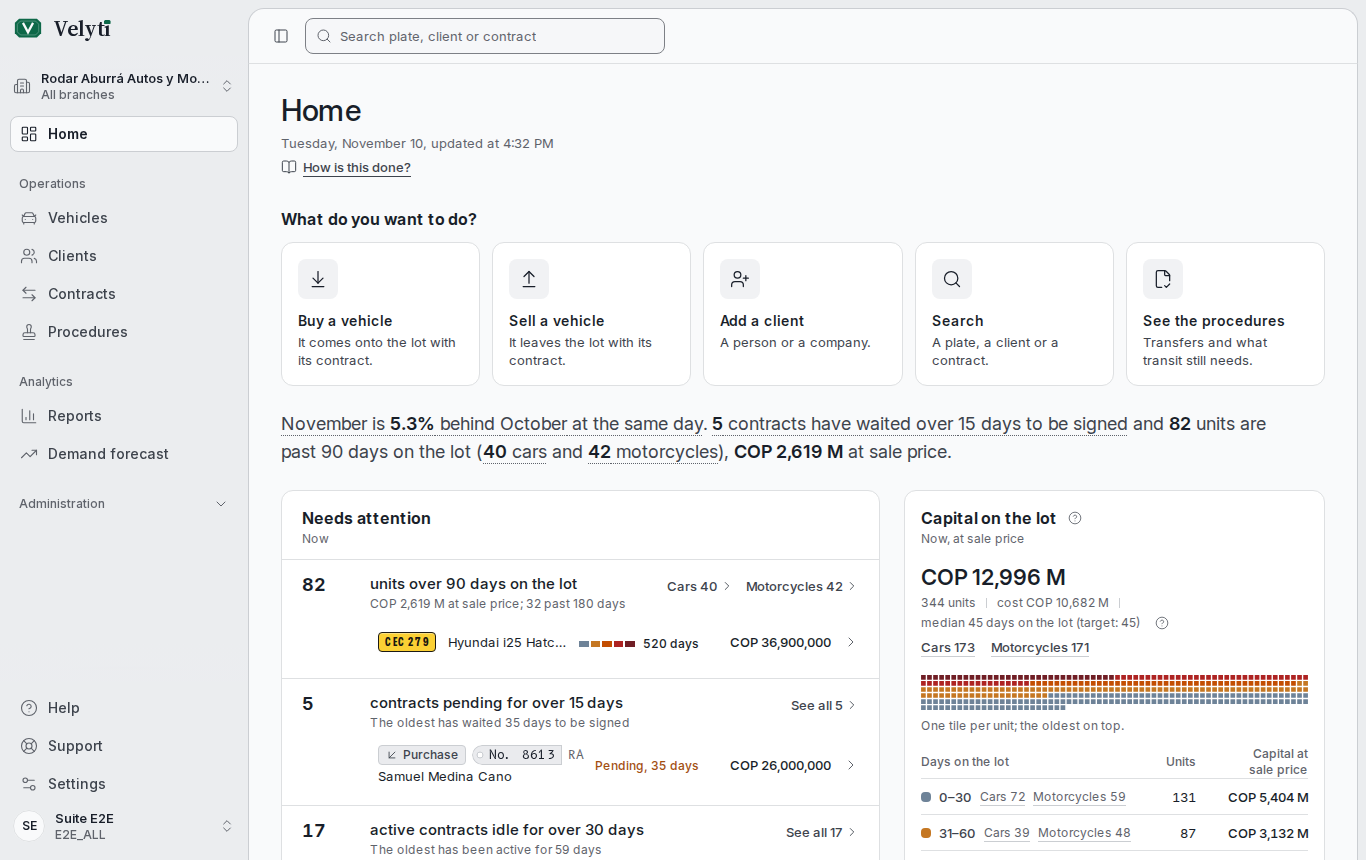
The side menu and the search box on Home.
Home is the first entry, on its own above the groups. Administration starts folded: select it to see its sections; it stays as you leave it, and opens by itself when you are on one of them.
At the foot of the menu are Help, Support and Settings, and below them your account, with My profile. First steps is part of Help.
Select Collapse menu to give the content more room, and Expand menu to bring it back. You can also press Ctrl B. On a phone, Open menu opens the navigation and Quick access keeps the main sections within reach.
Global search
Press Ctrl K from any screen, or select Search plate, client or contract at the top, to open the Global search.- Type at least two characters. Search covers vehicles, clients and contracts.
- Try a plate, an ID number or a contract number.
- Move through the results with the arrow keys and press Enter to open one. If you type a plate, Enter opens that vehicle directly.
- On a result, press Tab or the right arrow to see its actions, such as Preview, Record sale or Copy plate. Ctrl Enter runs the second action.
- The search also creates records (New car, New motorcycle, New person, New company, New contract), finds terms from the glossary and runs commands.
- Press Esc to close it.
Help on the same screen
Under the title of the main screens and on the records, How is this done? opens this guide in another tab, on the page that explains that screen. What you are doing in Velyti stays where you left it.Language and theme
Change the Language between Español and English and the Theme between Light, Dark and System in Settings. Both are also available as commands in the global search: Change language and Change theme.Keyboard shortcuts
The shortcuts with Ctrl always work. The single-key ones start off: turn them on with Single-key shortcuts in Settings. Once on, they work whenever you are not typing in a field. Press? to see the full list, or open the Global search and choose Keyboard shortcuts.
The go-to shortcuts appear only for the sections your role allows.
If you use a screen reader or voice dictation, leave Single-key shortcuts off: single keys would fire by accident. The ones with Ctrl keep working.