

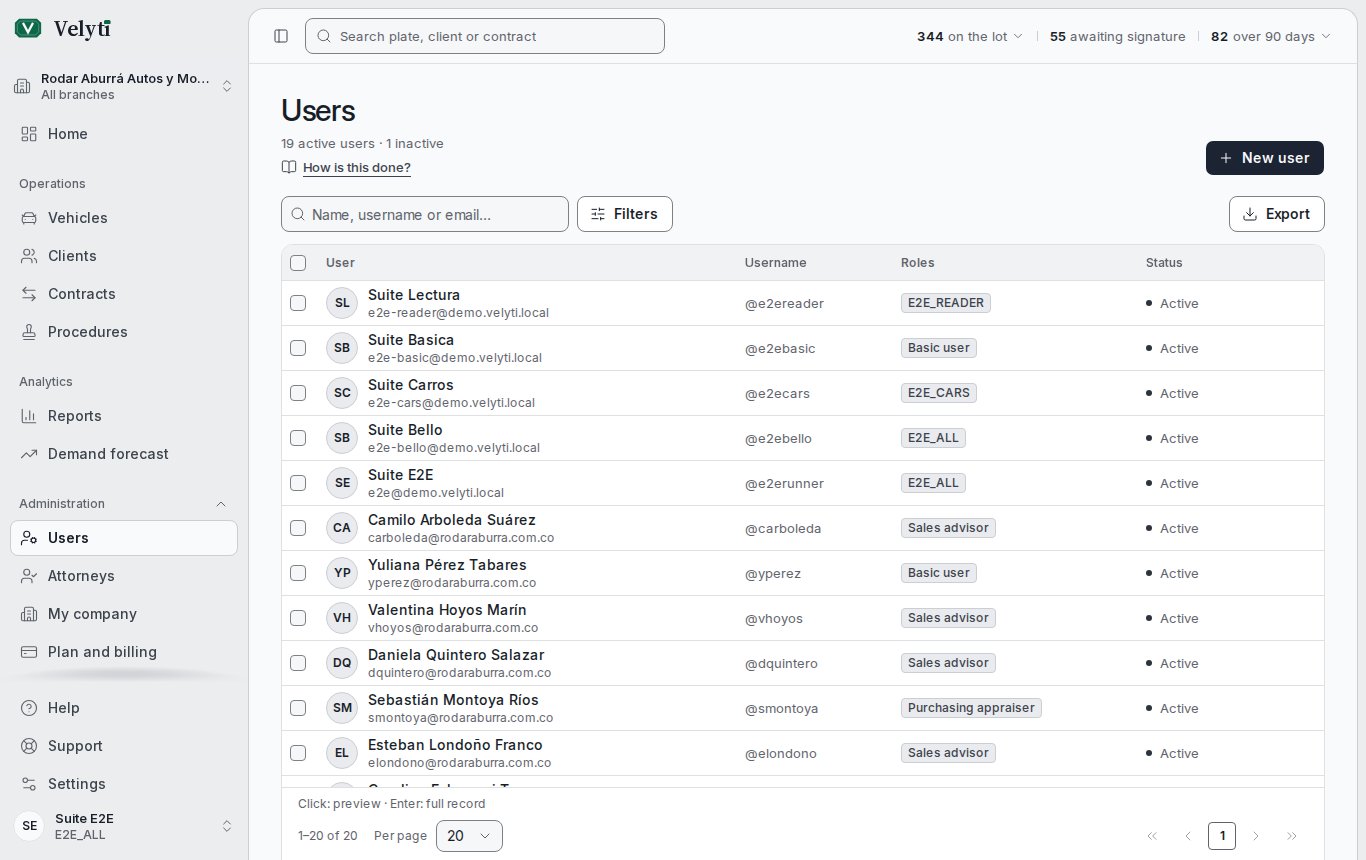
The Users list.
Users
The Users page lists your team. Search by name, username or email, and filter by Any role or Any status. A summary shows how many users are active and how many inactive. Each user is Active or Inactive. An account that was invited and has not set its password yet shows Invitation pending, or Invitation expired if the link lapsed.Invite a user
1
Open the form
Choose New user.
2
Fill in the details
Enter the given names, last name, ID number, email and a Username. The username is unique across all of Velyti.
3
Choose the roles
Choose at least one role. Each role says what it is for. A user may hold several roles, and their permissions add up.
4
Send the invitation
The app sends an email with a link to set a password. The link expires in 72 hours. Nobody types a colleague’s password: the person sets their own.
Whom you can manage
You can edit, deactivate, delete or send an access link only to users whose permissions you also hold and who work only in your branches; the Administrator can manage everyone. For anyone else those actions do not appear, so their password, email or account cannot be changed by someone with less access.Branches
When you Edit a user, Branches sets where they work: the branches whose vehicles, contracts and procedures they see and record. Choose Every branch (including those opened later) or Only these branches with at least one selected; it is saved with the rest of the form when you press Save. You can only give branches you work in yourself, and only someone who works in every branch can give every branch. The change reaches their session within a few minutes.Deactivate, activate or delete
To stop someone signing in while keeping their name on the paperwork, deactivate them. Your plan may limit active users; see Plan and billing.