> ## Documentation Index
> Fetch the complete documentation index at: https://docs.velyti.com/llms.txt
> Use this file to discover all available pages before exploring further.
# Vehicles
> Find, filter and manage the cars and motorcycles on your lot.
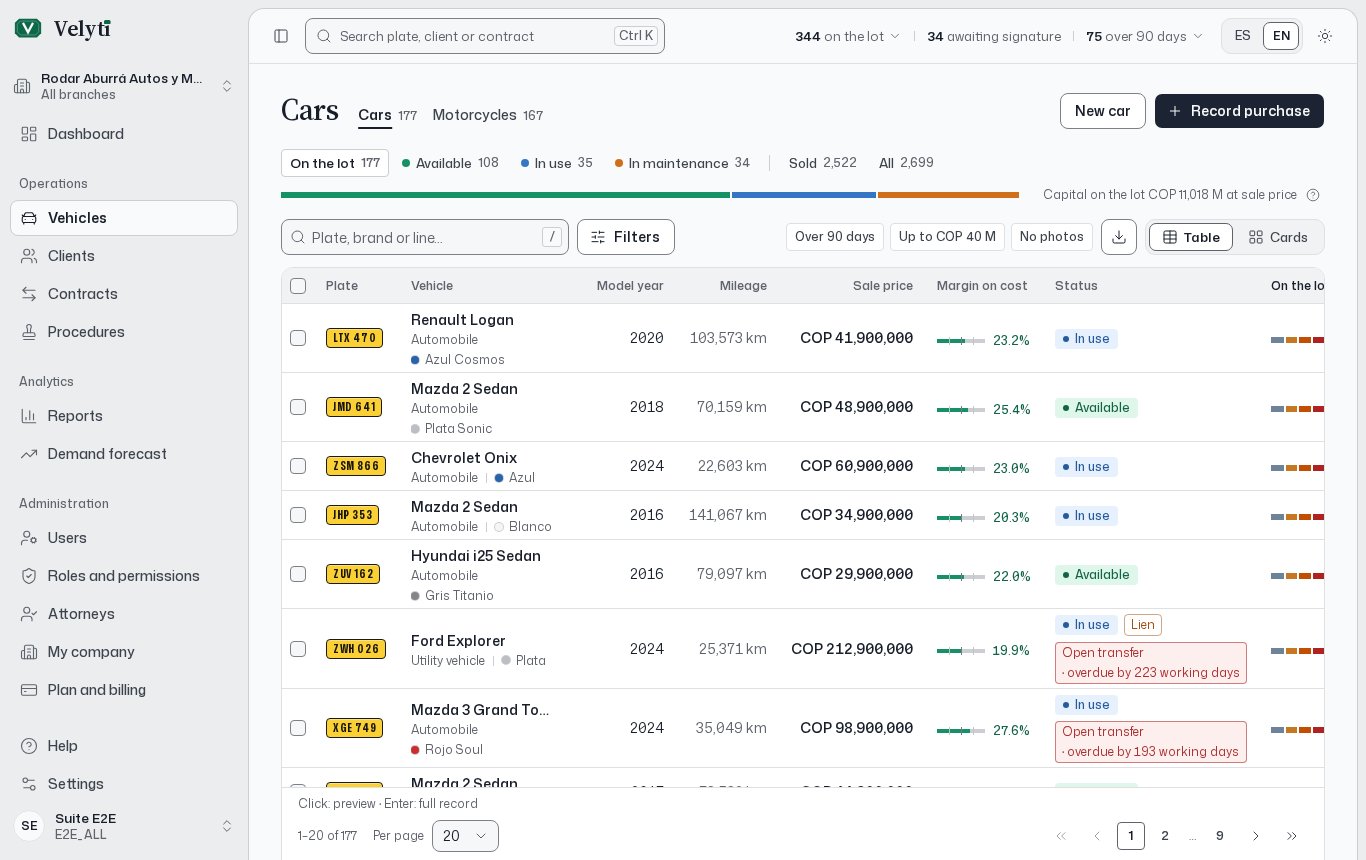
**Vehicles** is your inventory. It has two lists, **Cars** and **Motorcycles**, and each one shows what is on the lot, how long it has been there and what you can do with it next.
 You need the read permission for each list: one for cars and a separate one for motorcycles. If you only have one of them, you only see that list. Your administrator manages this in [Users and roles](/administration/users-and-roles).
## Read the list
Above the table, the composition bar shows how many units are **On the lot** and how they split by status: **Available**, **In use**, **In maintenance**, **In repair** and **Inactive**. Click a status to show only those vehicles. **Sold** and **All** show the rest. **In repair** and **Inactive** only appear when there is at least one.
Each row shows the plate, the vehicle (brand, line and class), the model year, the mileage, the sale price, the margin, the status and the time **On the lot**. The table adapts to your screen: on a narrow screen the same data appears as cards, and **View** lets you switch between **Table** and **Cards**.
Click a row to open a side summary with the key facts. From there, **Open record** takes you to the full [vehicle record](/inventory/vehicle-record).
### Days on the lot
**On the lot** counts the days since the vehicle arrived. The list also tells you the next checkpoint:
| Days | Checkpoint |
| - | - |
| 30 | Price review |
| 60 | Price adjustment |
| 90 | Management review |
| 180 | Clearance |
Past 180 days the list shows how many days it is over. For sold vehicles it shows **Sold in** the number of days it took.
Vehicles are grouped in bands: **Up to 30 days**, **31 to 60 days**, **61 to 90 days**, **91 to 180 days** and **Over 180 days**. Each band shows its units and amount. The **Lot map** gives the same picture with one tile per unit, the oldest at the back.
## Search and filter
Use the search box (**Plate, brand or line…**) to find a vehicle. If nothing matches in the current status, **Search every status** repeats the search across all of them, and you can also search in the other list.
To find a vehicle from anywhere in the app, use **Search plate** in the header (on a phone, in the bottom bar), or press Ctrl K.
**Filters** narrow the list by:
* **Brand**, **Line**, **Model year**, **Mileage** and **Sale price** (ranges use **From** and **To**).
* **Days on the lot**.
* **Class**, **Bodywork**, **Fuel**, **Service**, **Transmission** and **Capacity**.
* **Transit agency** and **Registered owner**.
* **Photos**: **With photos** or **No photos**.
* **Price**: **Below cost**.
* **Alerts**: **With active alerts** or **Without active alerts**, and the **Alert kind**.
Active filters appear as chips you can remove one by one, or all together with **Clear filters**. **Saved views** gives one-click shortcuts such as **Over 90 days**, **No photos** or a price ceiling.
## Change several statuses at once
Select rows with the checkboxes and choose **Change status** in the selection bar. The app asks you to confirm and then updates the vehicles one by one, with a progress count and a **Stop** button.
Sold vehicles are left alone: their contract decides their status. Vehicles already in the chosen status are skipped. If some fail, they stay selected so you can retry. You can change up to a fixed number of vehicles at a time; the app tells you the limit if you go over it.
## Export
**Export** downloads the current list as **CSV (.csv)** or **Excel (.xlsx)**, respecting your filters. With rows selected, **Export selection** exports only those. If there are too many records, narrow the filters first. The full history by date lives in [Reports](/insights/reports).
## Add a vehicle
A vehicle normally enters the lot with its purchase. Choose **Record purchase** and create the vehicle in the same form: see [Contracts](/contracts/contracts).
If you have permission to create vehicles, **New car** and **New motorcycle** create one directly. Such a vehicle enters the inventory without a purchase, so it cannot be sold until you record one. Read the [vehicle record](/inventory/vehicle-record) page for the fields.
If the plate, VIN, engine number, serial number or chassis number already exists, the form tells you and offers **Open the existing vehicle** or **Record its purchase**.
This documentation is built and hosted on [Mintlify](https://mintlify.com), a developer documentation platform.
You need the read permission for each list: one for cars and a separate one for motorcycles. If you only have one of them, you only see that list. Your administrator manages this in [Users and roles](/administration/users-and-roles).
## Read the list
Above the table, the composition bar shows how many units are **On the lot** and how they split by status: **Available**, **In use**, **In maintenance**, **In repair** and **Inactive**. Click a status to show only those vehicles. **Sold** and **All** show the rest. **In repair** and **Inactive** only appear when there is at least one.
Each row shows the plate, the vehicle (brand, line and class), the model year, the mileage, the sale price, the margin, the status and the time **On the lot**. The table adapts to your screen: on a narrow screen the same data appears as cards, and **View** lets you switch between **Table** and **Cards**.
Click a row to open a side summary with the key facts. From there, **Open record** takes you to the full [vehicle record](/inventory/vehicle-record).
### Days on the lot
**On the lot** counts the days since the vehicle arrived. The list also tells you the next checkpoint:
| Days | Checkpoint |
| - | - |
| 30 | Price review |
| 60 | Price adjustment |
| 90 | Management review |
| 180 | Clearance |
Past 180 days the list shows how many days it is over. For sold vehicles it shows **Sold in** the number of days it took.
Vehicles are grouped in bands: **Up to 30 days**, **31 to 60 days**, **61 to 90 days**, **91 to 180 days** and **Over 180 days**. Each band shows its units and amount. The **Lot map** gives the same picture with one tile per unit, the oldest at the back.
## Search and filter
Use the search box (**Plate, brand or line…**) to find a vehicle. If nothing matches in the current status, **Search every status** repeats the search across all of them, and you can also search in the other list.
To find a vehicle from anywhere in the app, use **Search plate** in the header (on a phone, in the bottom bar), or press Ctrl K.
**Filters** narrow the list by:
* **Brand**, **Line**, **Model year**, **Mileage** and **Sale price** (ranges use **From** and **To**).
* **Days on the lot**.
* **Class**, **Bodywork**, **Fuel**, **Service**, **Transmission** and **Capacity**.
* **Transit agency** and **Registered owner**.
* **Photos**: **With photos** or **No photos**.
* **Price**: **Below cost**.
* **Alerts**: **With active alerts** or **Without active alerts**, and the **Alert kind**.
Active filters appear as chips you can remove one by one, or all together with **Clear filters**. **Saved views** gives one-click shortcuts such as **Over 90 days**, **No photos** or a price ceiling.
## Change several statuses at once
Select rows with the checkboxes and choose **Change status** in the selection bar. The app asks you to confirm and then updates the vehicles one by one, with a progress count and a **Stop** button.
Sold vehicles are left alone: their contract decides their status. Vehicles already in the chosen status are skipped. If some fail, they stay selected so you can retry. You can change up to a fixed number of vehicles at a time; the app tells you the limit if you go over it.
## Export
**Export** downloads the current list as **CSV (.csv)** or **Excel (.xlsx)**, respecting your filters. With rows selected, **Export selection** exports only those. If there are too many records, narrow the filters first. The full history by date lives in [Reports](/insights/reports).
## Add a vehicle
A vehicle normally enters the lot with its purchase. Choose **Record purchase** and create the vehicle in the same form: see [Contracts](/contracts/contracts).
If you have permission to create vehicles, **New car** and **New motorcycle** create one directly. Such a vehicle enters the inventory without a purchase, so it cannot be sold until you record one. Read the [vehicle record](/inventory/vehicle-record) page for the fields.
If the plate, VIN, engine number, serial number or chassis number already exists, the form tells you and offers **Open the existing vehicle** or **Record its purchase**.
This documentation is built and hosted on [Mintlify](https://mintlify.com), a developer documentation platform.