> ## Documentation Index
> Fetch the complete documentation index at: https://docs.velyti.com/llms.txt
> Use this file to discover all available pages before exploring further.
# Support
> Write to the Velyti team, follow your requests, and decide when support may enter your account.
When something does not work or you need help, write to Velyti Support from inside the app. Open **Support** in the side menu. It has two tabs: **Requests** and **Support access**.
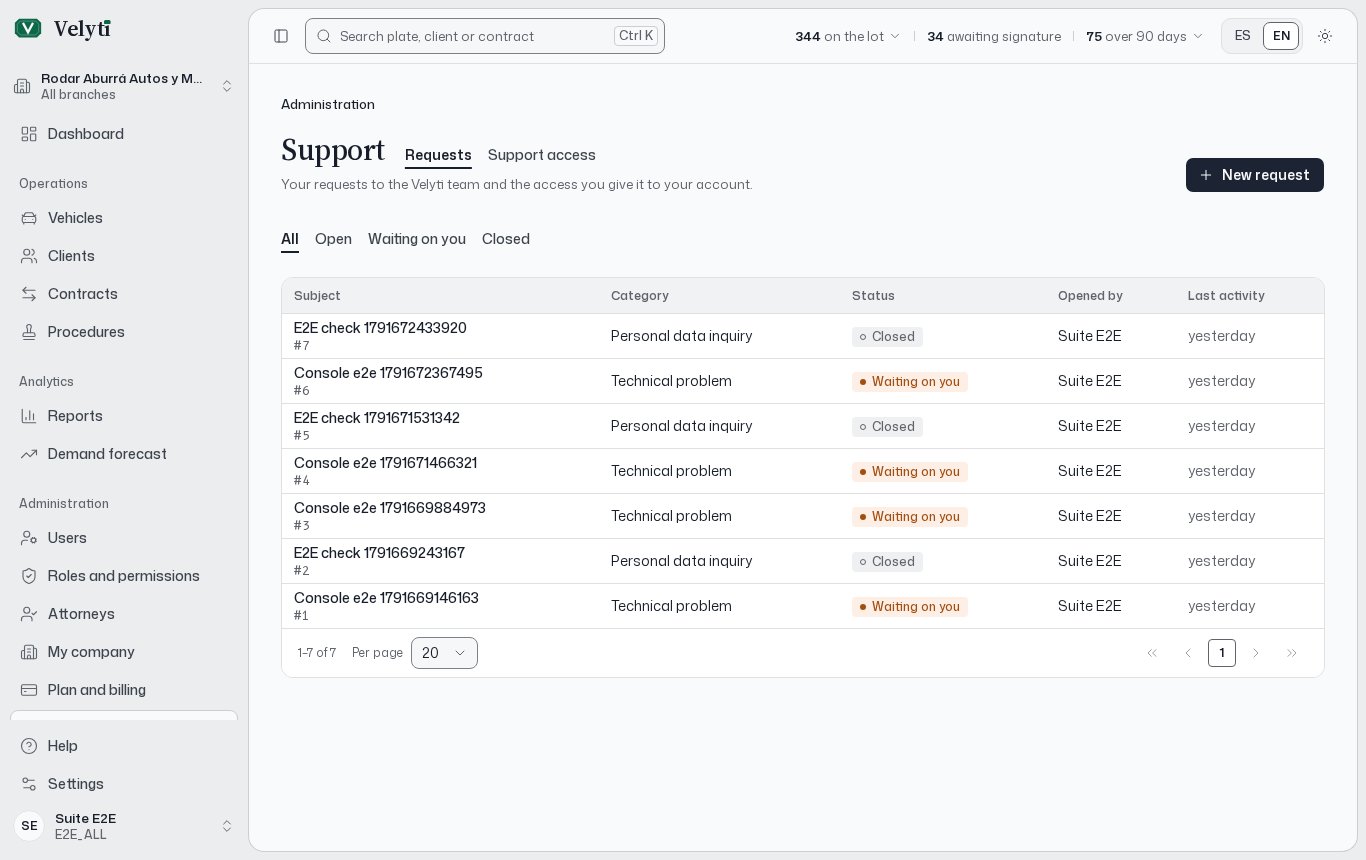 Support answers by email, and the conversation is also kept in the request, so you can read the replies and answer from the app.
## Before you write
* Look the term up in the [Glossary](/help/glossary). Many questions are about what a word of the paperwork or a figure means.
* If you cannot open a section, the message says your role does not allow it. Ask whoever manages your company's Velyti account to add it to your role. That person is who to ask inside the company for roles, branches and users. See [Users and roles](/administration/users-and-roles).
* For plan limits or payments, check [Plan and billing](/administration/subscription) first.
## Send a request
In **Requests**, choose **New request**.
Write the **Subject** in one sentence: what is happening or what you need.
Pick the **Category** that fits best.
In **Message**, tell us what happened, on which screen and what you expected to happen.
Use **Add files** for PNG, JPG or PDF files. The form shows the maximum size of each. Use **Remove** on a file to take it out.
Choose **Send request**. The app confirms with **Request sent**.
### Categories
| Category | Use it for |
| - | - |
| **Technical problem** | Something does not work as expected. |
| **Billing and payments** | A payment, a receipt or an invoice. |
| **Feature request** | An idea for the app. |
| **Account and access** | Sign-in, users or permissions. |
| **Personal data inquiry** | A question about personal data. |
| **Personal data claim** | A claim about personal data. |
Inquiries about personal data (Ley 1581 de 2012) are answered within 10 working days, and claims within 15. A request with a legal deadline shows it as **Legal deadline** with the date.
## Follow a request
The **Requests** list shows each request's **Subject**, **Category**, **Status**, **Last activity** and who opened it. Filter by status to find one.
| Status | Meaning |
| - | - |
| **Open** | The request is being handled. |
| **Waiting on you** | Velyti Support answered and is waiting for your reply. |
| **Closed** | The request is closed and takes no more replies. |
Open a request to read the **Conversation** and the **Attached files**. To answer, write in **Your reply** and choose **Send reply**.
When you no longer need help, choose **Close request** and confirm. If you need more help afterwards, open a new request.
## Support access
Sometimes the quickest fix is for the Velyti team to look at your account. The **Support access** tab lets you allow that, for a limited time.
The team can only enter with your permission.
**Read only** can see your information but not change it. **Full access** can see and correct records for you.
The duration is between 1 and 72 hours. Write the **Reason**: what support should look into. It stays in the log. You can link a **Related request**.
Support can never manage users or roles, or download scanned documents. While support has access, the app shows a banner with the scope and the end date.
You can **Revoke** the access at any time: support loses access at once, and a session it has open ends on its next action. The **Access log** records every access granted or revoked and every change support made in your account. Use **Show reads too** to include each screen support looked at.
Grant the narrowest scope that solves the problem, for the shortest time. Your role needs the **Support access** permission to grant or revoke; without it you can see the accesses but not change them.
This documentation is built and hosted on [Mintlify](https://mintlify.com), a developer documentation platform.
Support answers by email, and the conversation is also kept in the request, so you can read the replies and answer from the app.
## Before you write
* Look the term up in the [Glossary](/help/glossary). Many questions are about what a word of the paperwork or a figure means.
* If you cannot open a section, the message says your role does not allow it. Ask whoever manages your company's Velyti account to add it to your role. That person is who to ask inside the company for roles, branches and users. See [Users and roles](/administration/users-and-roles).
* For plan limits or payments, check [Plan and billing](/administration/subscription) first.
## Send a request
In **Requests**, choose **New request**.
Write the **Subject** in one sentence: what is happening or what you need.
Pick the **Category** that fits best.
In **Message**, tell us what happened, on which screen and what you expected to happen.
Use **Add files** for PNG, JPG or PDF files. The form shows the maximum size of each. Use **Remove** on a file to take it out.
Choose **Send request**. The app confirms with **Request sent**.
### Categories
| Category | Use it for |
| - | - |
| **Technical problem** | Something does not work as expected. |
| **Billing and payments** | A payment, a receipt or an invoice. |
| **Feature request** | An idea for the app. |
| **Account and access** | Sign-in, users or permissions. |
| **Personal data inquiry** | A question about personal data. |
| **Personal data claim** | A claim about personal data. |
Inquiries about personal data (Ley 1581 de 2012) are answered within 10 working days, and claims within 15. A request with a legal deadline shows it as **Legal deadline** with the date.
## Follow a request
The **Requests** list shows each request's **Subject**, **Category**, **Status**, **Last activity** and who opened it. Filter by status to find one.
| Status | Meaning |
| - | - |
| **Open** | The request is being handled. |
| **Waiting on you** | Velyti Support answered and is waiting for your reply. |
| **Closed** | The request is closed and takes no more replies. |
Open a request to read the **Conversation** and the **Attached files**. To answer, write in **Your reply** and choose **Send reply**.
When you no longer need help, choose **Close request** and confirm. If you need more help afterwards, open a new request.
## Support access
Sometimes the quickest fix is for the Velyti team to look at your account. The **Support access** tab lets you allow that, for a limited time.
The team can only enter with your permission.
**Read only** can see your information but not change it. **Full access** can see and correct records for you.
The duration is between 1 and 72 hours. Write the **Reason**: what support should look into. It stays in the log. You can link a **Related request**.
Support can never manage users or roles, or download scanned documents. While support has access, the app shows a banner with the scope and the end date.
You can **Revoke** the access at any time: support loses access at once, and a session it has open ends on its next action. The **Access log** records every access granted or revoked and every change support made in your account. Use **Show reads too** to include each screen support looked at.
Grant the narrowest scope that solves the problem, for the shortest time. Your role needs the **Support access** permission to grant or revoke; without it you can see the accesses but not change them.
This documentation is built and hosted on [Mintlify](https://mintlify.com), a developer documentation platform.