> ## Documentation Index
> Fetch the complete documentation index at: https://docs.velyti.com/llms.txt
> Use this file to discover all available pages before exploring further.
# Sign in
> How to sign in with your username, create your password from an invitation and reset it if you forget it.
Your administrator creates your account. You sign in with the username they gave you, not with your email.
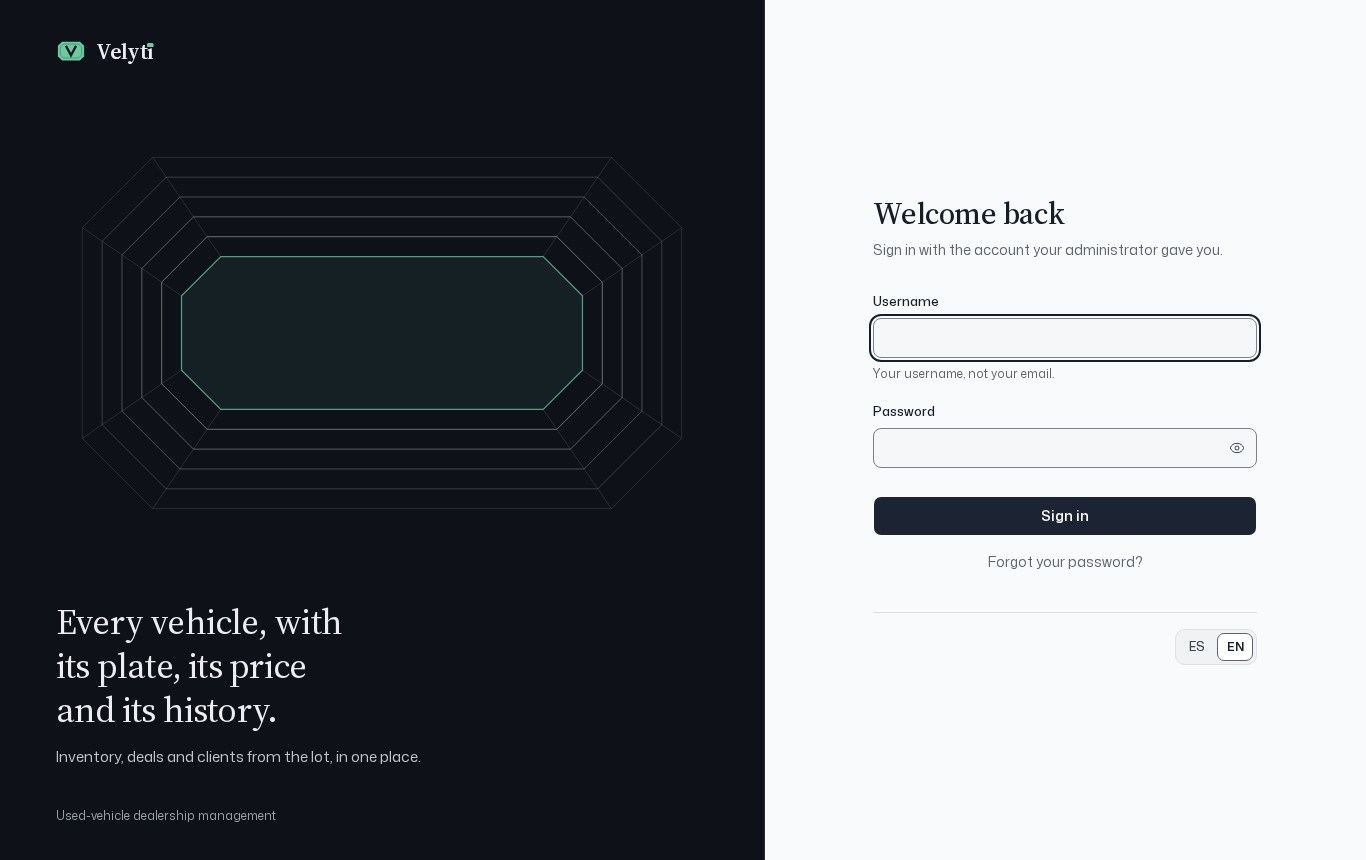 ## Sign in
On the sign-in screen, type your username in **Username**.
Type it in **Password**. Use **Show password** if you want to check what you typed; **Hide password** covers it again. If Caps Lock is on, the screen warns you.
Select **Sign in**.
The screen is available in Spanish and English. Change the language with the language selector on the same screen; it stays available once you are inside.
### If it does not work
* **Wrong username or password.** Check both and try again.
* **Too many attempts.** Wait a moment and try again.
* **Your session expired.** For your security, Velyti asks you to sign in again after a while. Sign in and continue.
If you still cannot sign in, reset your password or contact your administrator.
## Create your password from an invitation
When an administrator creates your user, you receive a link to set your password.
The page greets you by name and shows your username. Keep it: you will use it to sign in.
Type it in **New password** and again in **Repeat the password**. It must have between 8 and 72 characters. A long phrase is safer than a word with symbols.
Select **Save password**, then go to the sign-in screen and enter with your username.
The invitation link works once and expires after 72 hours. The page shows the exact date and time it expires. If it no longer works, select **Request another link**; if you already set your password, just sign in with it.
## Reset a forgotten password
On the sign-in screen, select **Forgot your password?**. Type your username or your email in **Username or email** and select **Send link**.
If there is an account with that username or email, Velyti sends a link to the email registered on the account. Velyti shows the same message either way, so it does not reveal which accounts exist. If the email does not arrive within a few minutes, check your spam folder.
Open the link, choose a new password with the same rules (8 to 72 characters) and select **Save password**. Then sign in with the new one.
Reset links work once and expire after 60 minutes. If yours expired, select **Ask for another link**.
You can also change your password while signed in, from **My profile**. See [Profile and settings](/administration/profile-and-settings).
## Sign out
Open your account menu at the bottom of the side menu and select **Sign out** when you leave a shared computer.
Next: [First steps](/getting-started/first-steps).
This documentation is built and hosted on [Mintlify](https://mintlify.com), a developer documentation platform.
## Sign in
On the sign-in screen, type your username in **Username**.
Type it in **Password**. Use **Show password** if you want to check what you typed; **Hide password** covers it again. If Caps Lock is on, the screen warns you.
Select **Sign in**.
The screen is available in Spanish and English. Change the language with the language selector on the same screen; it stays available once you are inside.
### If it does not work
* **Wrong username or password.** Check both and try again.
* **Too many attempts.** Wait a moment and try again.
* **Your session expired.** For your security, Velyti asks you to sign in again after a while. Sign in and continue.
If you still cannot sign in, reset your password or contact your administrator.
## Create your password from an invitation
When an administrator creates your user, you receive a link to set your password.
The page greets you by name and shows your username. Keep it: you will use it to sign in.
Type it in **New password** and again in **Repeat the password**. It must have between 8 and 72 characters. A long phrase is safer than a word with symbols.
Select **Save password**, then go to the sign-in screen and enter with your username.
The invitation link works once and expires after 72 hours. The page shows the exact date and time it expires. If it no longer works, select **Request another link**; if you already set your password, just sign in with it.
## Reset a forgotten password
On the sign-in screen, select **Forgot your password?**. Type your username or your email in **Username or email** and select **Send link**.
If there is an account with that username or email, Velyti sends a link to the email registered on the account. Velyti shows the same message either way, so it does not reveal which accounts exist. If the email does not arrive within a few minutes, check your spam folder.
Open the link, choose a new password with the same rules (8 to 72 characters) and select **Save password**. Then sign in with the new one.
Reset links work once and expire after 60 minutes. If yours expired, select **Ask for another link**.
You can also change your password while signed in, from **My profile**. See [Profile and settings](/administration/profile-and-settings).
## Sign out
Open your account menu at the bottom of the side menu and select **Sign out** when you leave a shared computer.
Next: [First steps](/getting-started/first-steps).
This documentation is built and hosted on [Mintlify](https://mintlify.com), a developer documentation platform.