> ## Documentation Index
> Fetch the complete documentation index at: https://docs.velyti.com/llms.txt
> Use this file to discover all available pages before exploring further.
# Find your way around
> The side menu, the global search, the language and theme options and the keyboard shortcuts.
## The menu
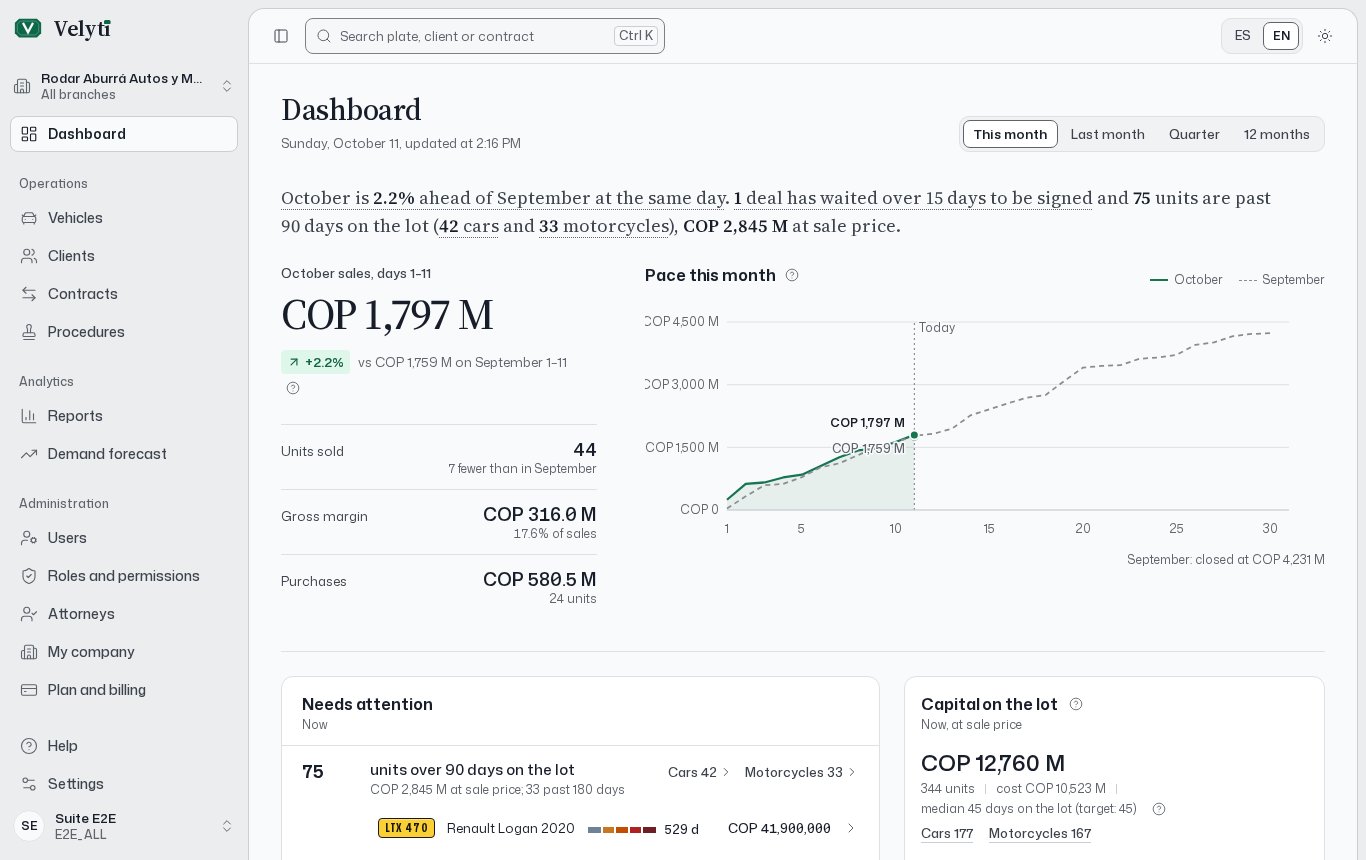
The side menu groups the sections of Velyti. It shows only the ones your role allows.
 | Group | Sections |
| - | - |
| Operations | **Dashboard**, **Vehicles** (**Cars**, **Motorcycles**), **Clients** (**People**, **Companies**), **Contracts**, **Procedures** |
| Analytics | **Reports**, **Demand forecast** |
| Administration | **Users**, **Roles and permissions**, **Attorneys**, **My company** |
Your account entries are **My profile**, **Settings**, **Plan and billing**, **Support** and **Help**. **First steps** is part of **Help**.
Select **Collapse menu** to give the content more room, and **Expand menu** to bring it back. You can also press Ctrl B. On a phone, **Open menu** opens the navigation and **Quick access** keeps the main sections within reach.
## Global search
Press Ctrl K from any screen, or select **Search plate, client or contract** at the top, to open the **Global search**.
* Type at least two characters. Search covers vehicles, clients and contracts.
* Try a plate, an ID number or a contract number.
* Move through the results with the arrow keys and press Enter to open one. If you type a plate, Enter opens that vehicle directly.
* On a result, press Tab or the right arrow to see its actions, such as **Preview**, **Record sale** or **Copy plate**. Ctrl Enter runs the second action.
* The search also creates records (**New car**, **New motorcycle**, **New person**, **New company**, **New contract**), finds terms from the glossary and runs commands.
* Press Esc to close it.
If you work in more than one branch, the search tells you when nothing matches in the current one and offers **Search all your branches**.
## Language and theme
Change the language between Español and English with the language selector in the header. Change the **Theme** between **Light**, **Dark** and **System** in **Settings**. Both are also available as commands in the global search: **Change language** and **Change theme**.
## Keyboard shortcuts
Shortcuts work whenever you are not typing in a field. Press `?` to see the full list, or open the **Global search** and choose **Keyboard shortcuts**.
| Shortcut | What it does |
| - | - |
| Ctrl K | Open the global search |
| Ctrl B | Collapse or expand the menu |
| `?` | Show the help |
| `G` then `P`, `V`, `C`, `L`, `T`, `R`, `U` | Go to **Dashboard**, **Vehicles**, **Contracts**, **Clients**, **Procedures**, **Reports**, **Users** |
| `/` | Search the list |
| `N` | Create a record |
| `J` / `K` | Next and previous row |
| Enter / Space | Open or preview the row |
| `E` | Edit the record |
| Ctrl Enter | Save the form |
The go-to shortcuts appear only for the sections your role allows.
If you use a screen reader or voice dictation and single keys fire by accident, turn off **Single-key shortcuts** in **Settings**. The ones with Ctrl keep working.
Next: [Vehicles](/inventory/vehicles).
This documentation is built and hosted on [Mintlify](https://mintlify.com), a developer documentation platform.
| Group | Sections |
| - | - |
| Operations | **Dashboard**, **Vehicles** (**Cars**, **Motorcycles**), **Clients** (**People**, **Companies**), **Contracts**, **Procedures** |
| Analytics | **Reports**, **Demand forecast** |
| Administration | **Users**, **Roles and permissions**, **Attorneys**, **My company** |
Your account entries are **My profile**, **Settings**, **Plan and billing**, **Support** and **Help**. **First steps** is part of **Help**.
Select **Collapse menu** to give the content more room, and **Expand menu** to bring it back. You can also press Ctrl B. On a phone, **Open menu** opens the navigation and **Quick access** keeps the main sections within reach.
## Global search
Press Ctrl K from any screen, or select **Search plate, client or contract** at the top, to open the **Global search**.
* Type at least two characters. Search covers vehicles, clients and contracts.
* Try a plate, an ID number or a contract number.
* Move through the results with the arrow keys and press Enter to open one. If you type a plate, Enter opens that vehicle directly.
* On a result, press Tab or the right arrow to see its actions, such as **Preview**, **Record sale** or **Copy plate**. Ctrl Enter runs the second action.
* The search also creates records (**New car**, **New motorcycle**, **New person**, **New company**, **New contract**), finds terms from the glossary and runs commands.
* Press Esc to close it.
If you work in more than one branch, the search tells you when nothing matches in the current one and offers **Search all your branches**.
## Language and theme
Change the language between Español and English with the language selector in the header. Change the **Theme** between **Light**, **Dark** and **System** in **Settings**. Both are also available as commands in the global search: **Change language** and **Change theme**.
## Keyboard shortcuts
Shortcuts work whenever you are not typing in a field. Press `?` to see the full list, or open the **Global search** and choose **Keyboard shortcuts**.
| Shortcut | What it does |
| - | - |
| Ctrl K | Open the global search |
| Ctrl B | Collapse or expand the menu |
| `?` | Show the help |
| `G` then `P`, `V`, `C`, `L`, `T`, `R`, `U` | Go to **Dashboard**, **Vehicles**, **Contracts**, **Clients**, **Procedures**, **Reports**, **Users** |
| `/` | Search the list |
| `N` | Create a record |
| `J` / `K` | Next and previous row |
| Enter / Space | Open or preview the row |
| `E` | Edit the record |
| Ctrl Enter | Save the form |
The go-to shortcuts appear only for the sections your role allows.
If you use a screen reader or voice dictation and single keys fire by accident, turn off **Single-key shortcuts** in **Settings**. The ones with Ctrl keep working.
Next: [Vehicles](/inventory/vehicles).
This documentation is built and hosted on [Mintlify](https://mintlify.com), a developer documentation platform.