> ## Documentation Index
> Fetch the complete documentation index at: https://docs.velyti.com/llms.txt
> Use this file to discover all available pages before exploring further.
# Documents
> Generate the contract, the RUNT form and the power of attorney, print them, upload the signed scan and void a version when needed.
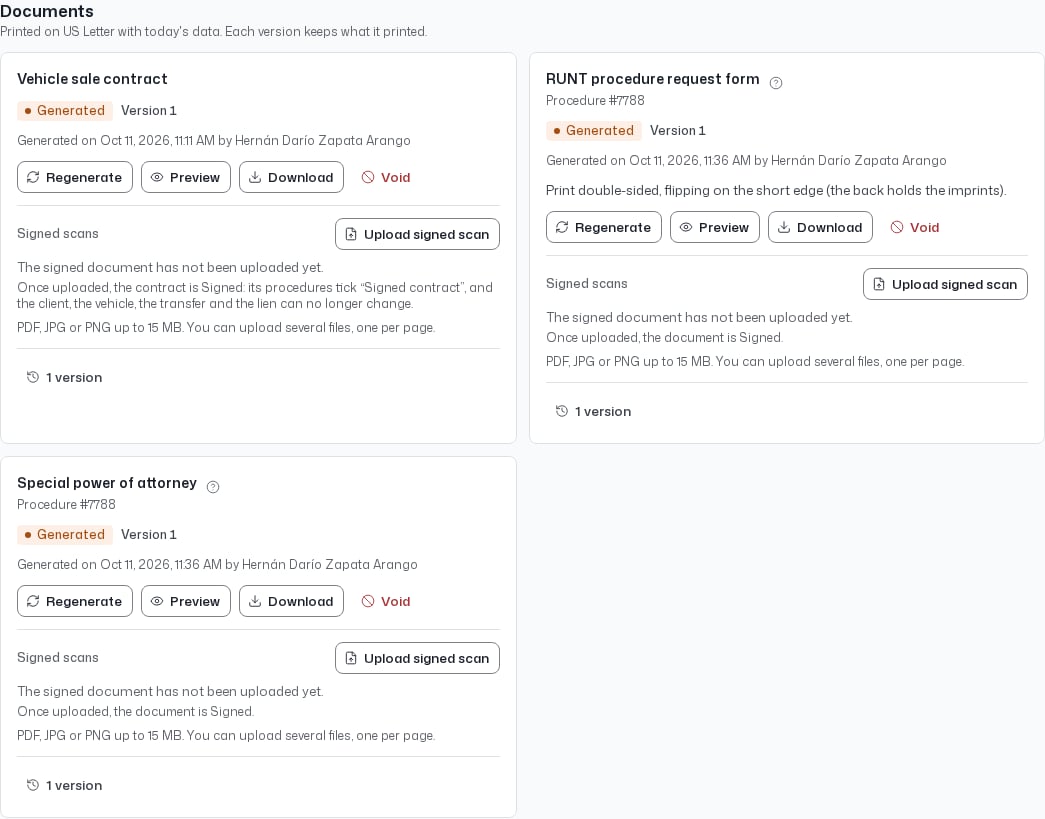
Velyti prints three documents on US Letter paper, with the official wording and today's data:
 | Document | Used for |
| - | - |
| **Vehicle sale contract** | The contract between the parties. |
| **RUNT procedure request form** | The request filed at the transit agency (*organismo de tránsito*). |
| **Special power of attorney** | Names who files the procedure on behalf of the owner and the buyer. |
You find the contract's documents on the contract's record (see [Contracts](/contracts/contracts)), and the RUNT form and the power of attorney on the procedure (see [Procedures](/procedures/procedures)). Each version keeps what it printed, so a later change to the data never alters a document already generated.
## Generate a document
Before generating, **Before generating** lists what is still **Missing** and what you should **Check**. When everything is in place it says **The data is complete.**
Each item has a link such as **Fix**, **View the procedure**, **Assign an attorney** or **Complete the legal entity**. You cannot generate the document while something is missing.
Select **Generate**. The document appears as **Version 1**, with the date and the person who generated it.
Use **Preview**, **Download** or **Open in a new tab**. Print at 100 % on US Letter, without fitting to the page. The RUNT form is printed double-sided, flipping on the short edge, because the back holds the imprints.
Nothing is ever cut short. If a value does not fit its space on the form, generation is blocked: shorten the value in its record (name, address, conditions or limitations) and generate again.
## Regenerate after a change
If the data changed after you generated a document and it is not signed, it is marked **Out of date**, with the fields that changed. Select **Regenerate**: the earlier version is voided and a new one is generated with the current data.
If the earlier version was already signed on paper, do not regenerate it. Upload its signed scan instead and it becomes **Signed**.
## Signed scans
After the document is signed on paper, scan it and select **Upload signed scan**. You can upload PDF, JPG or PNG files, several if the document has several pages. The document status changes from **Generated** to **Signed**.
* Signing the contract ticks **Signed contract** in its procedures' requirements.
* Once the contract is signed, the client, the vehicle, the transfer and the lien can no longer change.
* The contract stays **Pending** after the upload. Select **Activate contract** when you are ready; see [Contracts](/contracts/contracts#statuses).
* If you delete the last scan, the document goes back to **Generated**, unsigned.
## Void a version
A version is never deleted. To replace a signed document, or to stop using a version, select **Void** and write a **Reason** of between 3 and 300 characters. The voided version and its scan remain in the history under **Versions**, with the date and reason.
A voided version is no longer printed or signed. If it was a signed original, the print-overs made on it are voided too. A changed signed document must be voided before another version can be generated.
## Open transfer
A purchase can leave the vehicle in the registered owner's name until you sell it (*traspaso abierto*). In that case:
1. At the purchase, the owner signs the documents with the buyer left blank. For this the platform generates the **Sale contract (registered owner)**.
2. When you record the sale, the buyer's data is added to the procedure.
3. Only the missing data is printed over the signed sheets, as **Print over the signed document**. It carries the buyer, the attorney and whatever was pending.
To print over a signed sheet, follow the steps shown under **How to print it over**: test on a blank sheet first, hold it against the light over the signed sheet, and measure any shift in millimetres. Enter it under **Printer adjustment** (**Horizontal** and **Vertical**); the adjustment is kept on that device and applied to the preview and the download. If you prefer to write the data by hand, **To copy by hand** lists the missing fields in the form's order.
If there is no signed original, the whole document is regenerated from the purchase.
## Canceled contracts and procedures
No documents are generated for a canceled contract or procedure.
This documentation is built and hosted on [Mintlify](https://mintlify.com), a developer documentation platform.
| Document | Used for |
| - | - |
| **Vehicle sale contract** | The contract between the parties. |
| **RUNT procedure request form** | The request filed at the transit agency (*organismo de tránsito*). |
| **Special power of attorney** | Names who files the procedure on behalf of the owner and the buyer. |
You find the contract's documents on the contract's record (see [Contracts](/contracts/contracts)), and the RUNT form and the power of attorney on the procedure (see [Procedures](/procedures/procedures)). Each version keeps what it printed, so a later change to the data never alters a document already generated.
## Generate a document
Before generating, **Before generating** lists what is still **Missing** and what you should **Check**. When everything is in place it says **The data is complete.**
Each item has a link such as **Fix**, **View the procedure**, **Assign an attorney** or **Complete the legal entity**. You cannot generate the document while something is missing.
Select **Generate**. The document appears as **Version 1**, with the date and the person who generated it.
Use **Preview**, **Download** or **Open in a new tab**. Print at 100 % on US Letter, without fitting to the page. The RUNT form is printed double-sided, flipping on the short edge, because the back holds the imprints.
Nothing is ever cut short. If a value does not fit its space on the form, generation is blocked: shorten the value in its record (name, address, conditions or limitations) and generate again.
## Regenerate after a change
If the data changed after you generated a document and it is not signed, it is marked **Out of date**, with the fields that changed. Select **Regenerate**: the earlier version is voided and a new one is generated with the current data.
If the earlier version was already signed on paper, do not regenerate it. Upload its signed scan instead and it becomes **Signed**.
## Signed scans
After the document is signed on paper, scan it and select **Upload signed scan**. You can upload PDF, JPG or PNG files, several if the document has several pages. The document status changes from **Generated** to **Signed**.
* Signing the contract ticks **Signed contract** in its procedures' requirements.
* Once the contract is signed, the client, the vehicle, the transfer and the lien can no longer change.
* The contract stays **Pending** after the upload. Select **Activate contract** when you are ready; see [Contracts](/contracts/contracts#statuses).
* If you delete the last scan, the document goes back to **Generated**, unsigned.
## Void a version
A version is never deleted. To replace a signed document, or to stop using a version, select **Void** and write a **Reason** of between 3 and 300 characters. The voided version and its scan remain in the history under **Versions**, with the date and reason.
A voided version is no longer printed or signed. If it was a signed original, the print-overs made on it are voided too. A changed signed document must be voided before another version can be generated.
## Open transfer
A purchase can leave the vehicle in the registered owner's name until you sell it (*traspaso abierto*). In that case:
1. At the purchase, the owner signs the documents with the buyer left blank. For this the platform generates the **Sale contract (registered owner)**.
2. When you record the sale, the buyer's data is added to the procedure.
3. Only the missing data is printed over the signed sheets, as **Print over the signed document**. It carries the buyer, the attorney and whatever was pending.
To print over a signed sheet, follow the steps shown under **How to print it over**: test on a blank sheet first, hold it against the light over the signed sheet, and measure any shift in millimetres. Enter it under **Printer adjustment** (**Horizontal** and **Vertical**); the adjustment is kept on that device and applied to the preview and the download. If you prefer to write the data by hand, **To copy by hand** lists the missing fields in the form's order.
If there is no signed original, the whole document is regenerated from the purchase.
## Canceled contracts and procedures
No documents are generated for a canceled contract or procedure.
This documentation is built and hosted on [Mintlify](https://mintlify.com), a developer documentation platform.