> ## Documentation Index
> Fetch the complete documentation index at: https://docs.velyti.com/llms.txt
> Use this file to discover all available pages before exploring further.
# Users and roles
> Invite your team, choose their roles and branches, and control what each role is allowed to do.
Everything about who can sign in and what they can do lives in two pages under **Administration**: **Users** and **Roles and permissions**. You need the matching permissions to see and change them.
 ## Users
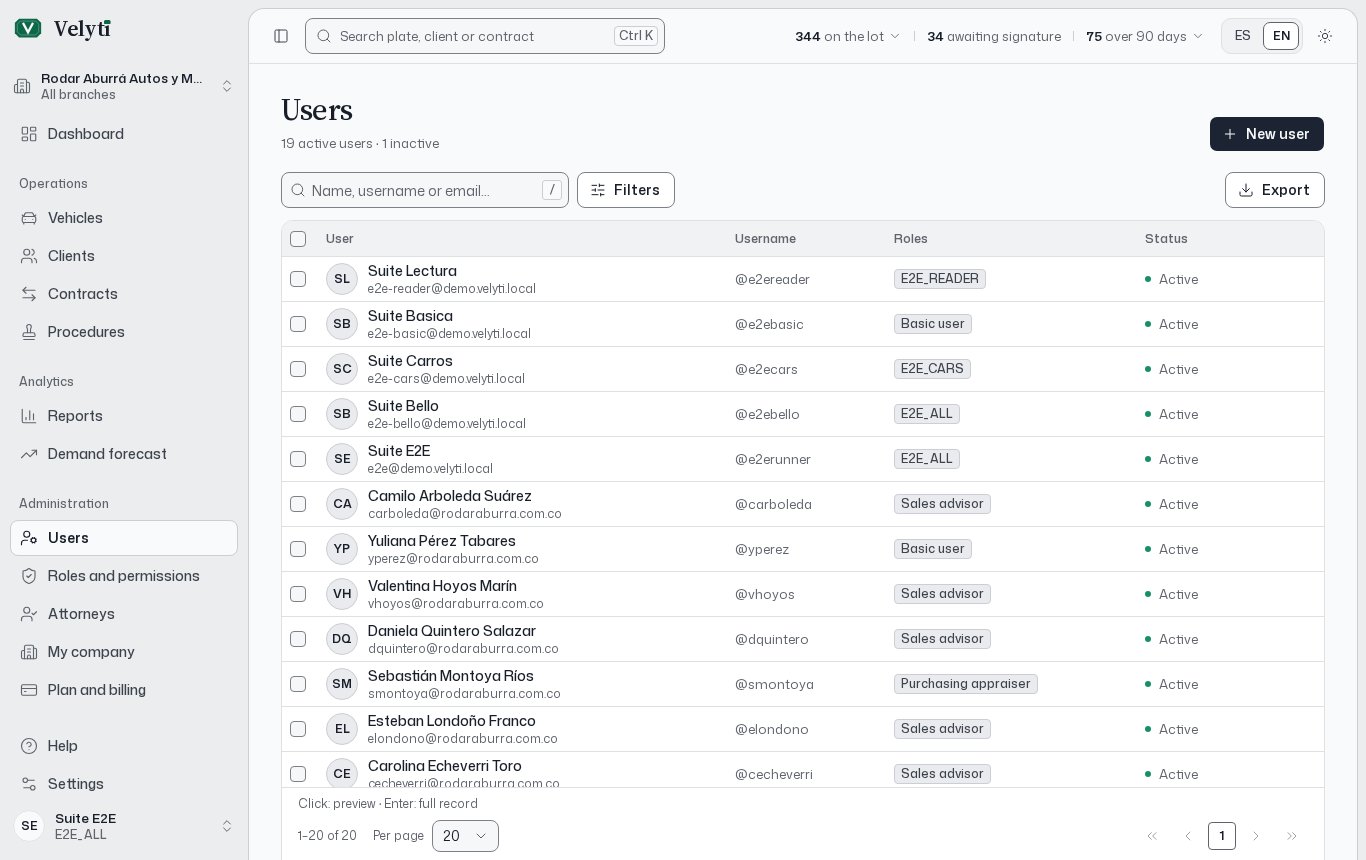
The **Users** page lists your team. Search by name, username or email, and filter by **Any role** or **Any status**. A summary shows how many users are active and how many inactive.
Each user is **Active** or **Inactive**. An account that was invited and has not set its password yet shows **Invitation pending**, or **Invitation expired** if the link lapsed.
### Invite a user
Choose **New user**.
Enter the given names, last name, ID number, email and a **Username**. The username is unique across all of Velyti.
Choose at least one role. A user may hold several roles, and their permissions add up.
The app sends an email with a link to set a password. The link expires in 72 hours. Nobody types a colleague's password: the person sets their own.
If the email does not arrive, open the user's row actions and choose **Resend invitation**, or use **Reset access**. The app shows an **Access link** once. Copy it and hand it over through a safe channel: Velyti only keeps its fingerprint. The app says whether the email also went out; if it did not, hand the link over yourself.
**Reset access** generates a link to set a new password and closes the person's open sessions.
### Branches
In a user's record, **Branches** sets where they work: the branches whose vehicles, contracts and procedures they see and record. Choose **Every branch** (including those opened later) or **Only these branches** with at least one selected, then **Save branches**. You can only give branches you work in yourself, and only someone who works in every branch can give every branch. The change reaches their session within a few minutes.
### Deactivate, activate or delete
| Action | What happens |
| - | - |
| **Deactivate** | The person cannot sign in until the account is reactivated. Their contracts do not change. An open session closes within a few minutes. |
| **Activate** | The person can sign in again with their usual password. |
| **Delete** | The account is erased with its sign-in details. Only an account without contracts or recorded actions can be deleted, and it cannot be undone. |
To stop someone signing in while keeping their name on the paperwork, deactivate them. Your plan may limit active users; see [Plan and billing](/administration/subscription).
## Roles and permissions
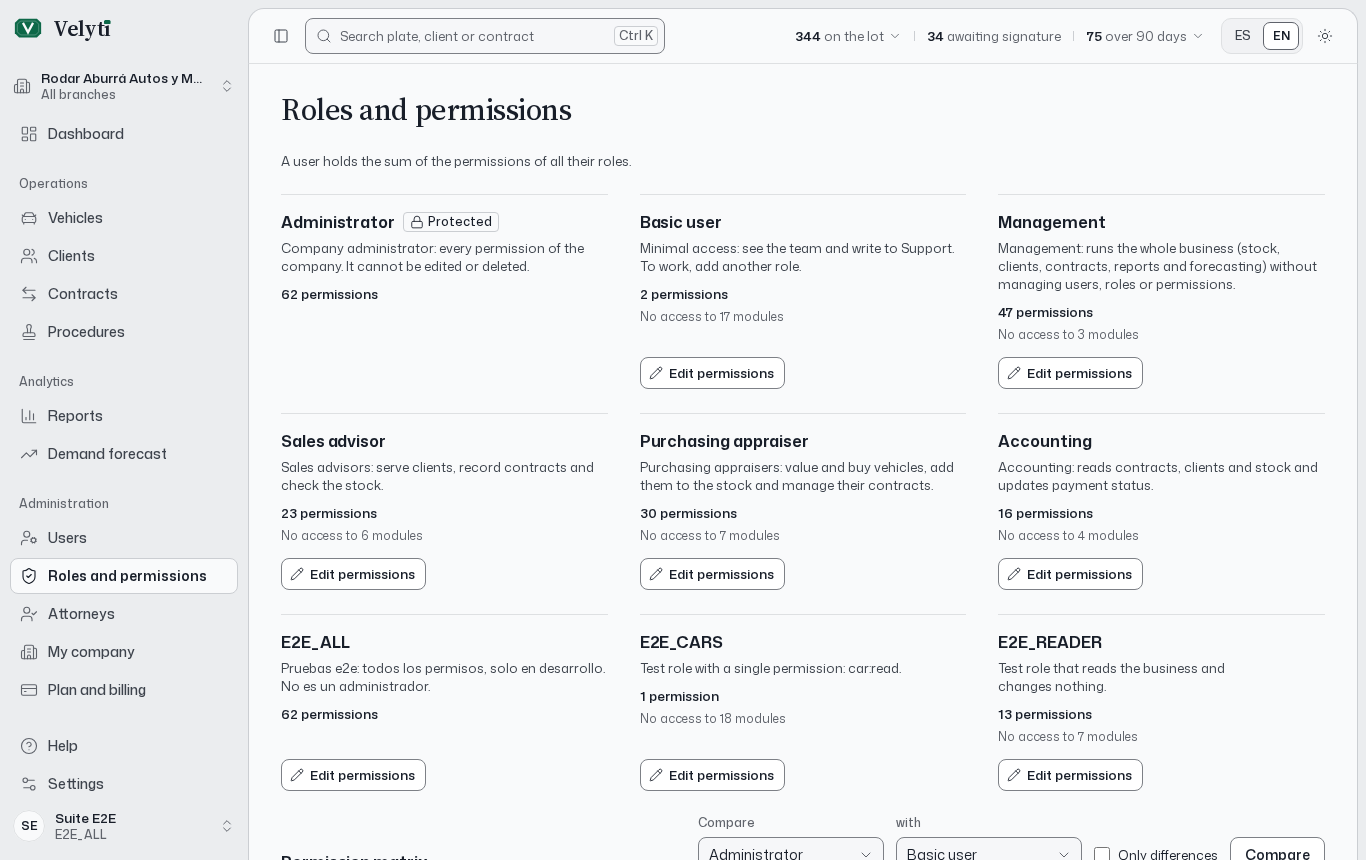
The **Roles and permissions** page lists the roles. A user holds the sum of the permissions of all their roles. The standard roles are **Administrator**, **Basic user**, **Management**, **Sales advisor**, **Purchasing appraiser** and **Accounting**.
### Read the permissions
Each role shows how many permissions it grants and how many modules it cannot access. Permissions are a resource and an action. The resources are Users, Roles, Permissions, People, Companies, Vehicles, Cars, Motorcycles, Contracts, Legal entities, Branches, Attorneys, Procedures, Documents, Forecast, Reports, Subscription, Support requests and Support access. The actions are **Create**, **View**, **Edit**, **Delete**, **Manage**, **Predict**, **Retrain** and **Models**, where each resource has the ones that apply.
Some permissions are marked **Sensitive** because they give power over other people's access. A role marked **Protected** holds every permission and cannot be edited or deleted.
### Compare roles
The **Permission matrix** lays the roles side by side. Use **Compare** to pick two roles and see only what differs, or **Show all roles** to go back.
### Edit a role
Choose **Edit permissions** on the role.
Click a resource name to grant or revoke the whole group.
The change applies to everyone with that role within a few minutes.
Permissions you do not hold yourself appear locked: you cannot give them. Editing a role's permissions also needs **Permissions: View**. If another administrator changes the role while you edit it, reload the page and apply your changes again.
See [Profile and settings](/administration/profile-and-settings) to check your own permissions, and [Glossary](/help/glossary) for terms.
This documentation is built and hosted on [Mintlify](https://mintlify.com), a developer documentation platform.
## Users
The **Users** page lists your team. Search by name, username or email, and filter by **Any role** or **Any status**. A summary shows how many users are active and how many inactive.
Each user is **Active** or **Inactive**. An account that was invited and has not set its password yet shows **Invitation pending**, or **Invitation expired** if the link lapsed.
### Invite a user
Choose **New user**.
Enter the given names, last name, ID number, email and a **Username**. The username is unique across all of Velyti.
Choose at least one role. A user may hold several roles, and their permissions add up.
The app sends an email with a link to set a password. The link expires in 72 hours. Nobody types a colleague's password: the person sets their own.
If the email does not arrive, open the user's row actions and choose **Resend invitation**, or use **Reset access**. The app shows an **Access link** once. Copy it and hand it over through a safe channel: Velyti only keeps its fingerprint. The app says whether the email also went out; if it did not, hand the link over yourself.
**Reset access** generates a link to set a new password and closes the person's open sessions.
### Branches
In a user's record, **Branches** sets where they work: the branches whose vehicles, contracts and procedures they see and record. Choose **Every branch** (including those opened later) or **Only these branches** with at least one selected, then **Save branches**. You can only give branches you work in yourself, and only someone who works in every branch can give every branch. The change reaches their session within a few minutes.
### Deactivate, activate or delete
| Action | What happens |
| - | - |
| **Deactivate** | The person cannot sign in until the account is reactivated. Their contracts do not change. An open session closes within a few minutes. |
| **Activate** | The person can sign in again with their usual password. |
| **Delete** | The account is erased with its sign-in details. Only an account without contracts or recorded actions can be deleted, and it cannot be undone. |
To stop someone signing in while keeping their name on the paperwork, deactivate them. Your plan may limit active users; see [Plan and billing](/administration/subscription).
## Roles and permissions
The **Roles and permissions** page lists the roles. A user holds the sum of the permissions of all their roles. The standard roles are **Administrator**, **Basic user**, **Management**, **Sales advisor**, **Purchasing appraiser** and **Accounting**.
### Read the permissions
Each role shows how many permissions it grants and how many modules it cannot access. Permissions are a resource and an action. The resources are Users, Roles, Permissions, People, Companies, Vehicles, Cars, Motorcycles, Contracts, Legal entities, Branches, Attorneys, Procedures, Documents, Forecast, Reports, Subscription, Support requests and Support access. The actions are **Create**, **View**, **Edit**, **Delete**, **Manage**, **Predict**, **Retrain** and **Models**, where each resource has the ones that apply.
Some permissions are marked **Sensitive** because they give power over other people's access. A role marked **Protected** holds every permission and cannot be edited or deleted.
### Compare roles
The **Permission matrix** lays the roles side by side. Use **Compare** to pick two roles and see only what differs, or **Show all roles** to go back.
### Edit a role
Choose **Edit permissions** on the role.
Click a resource name to grant or revoke the whole group.
The change applies to everyone with that role within a few minutes.
Permissions you do not hold yourself appear locked: you cannot give them. Editing a role's permissions also needs **Permissions: View**. If another administrator changes the role while you edit it, reload the page and apply your changes again.
See [Profile and settings](/administration/profile-and-settings) to check your own permissions, and [Glossary](/help/glossary) for terms.
This documentation is built and hosted on [Mintlify](https://mintlify.com), a developer documentation platform.