> ## Documentation Index
> Fetch the complete documentation index at: https://docs.velyti.com/llms.txt
> Use this file to discover all available pages before exploring further.
# My company
> Register the legal entities that sign your contracts and the branches where vehicles are kept and deals are signed.
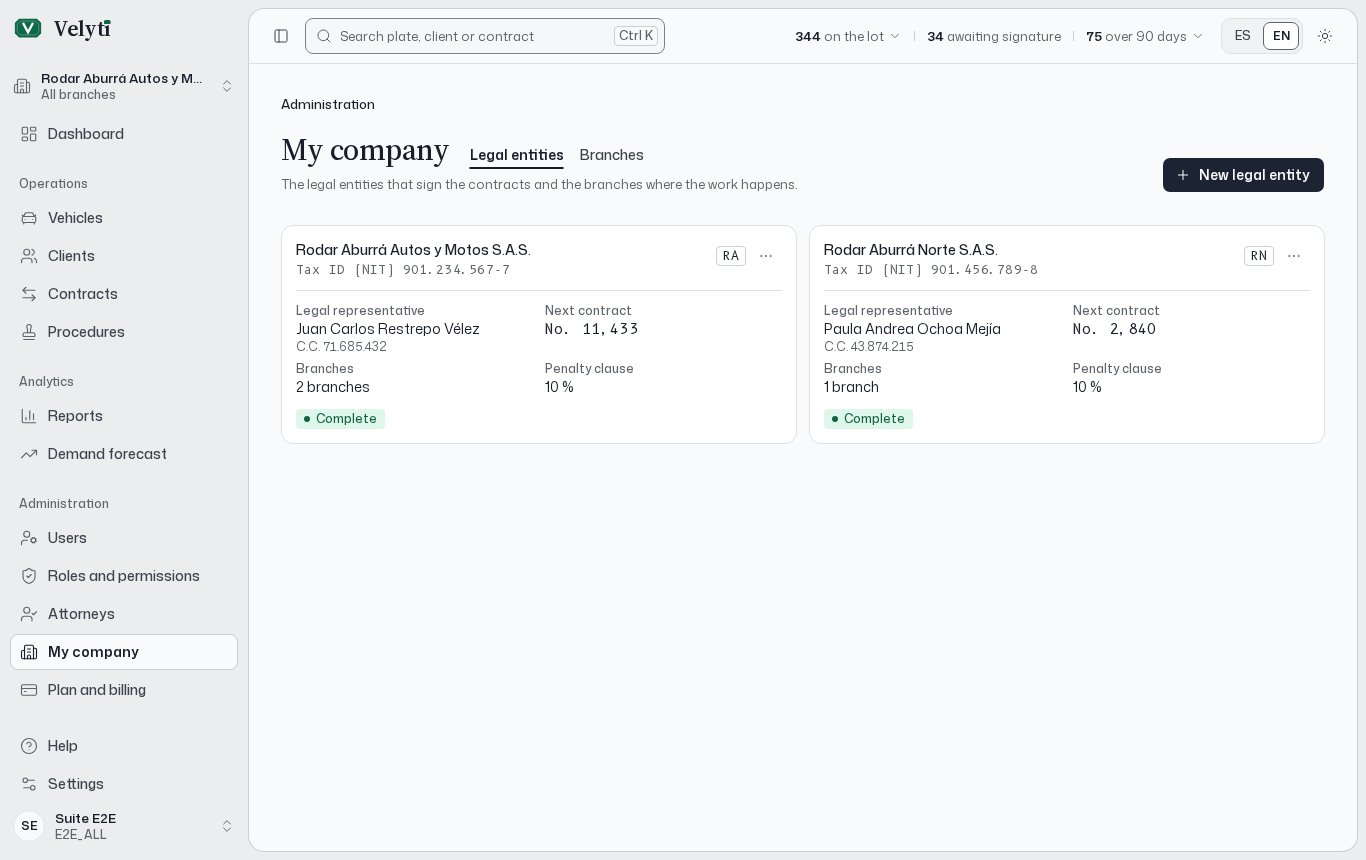
**My company** holds the two things every contract depends on: the legal entities that sign, and the branches where the work happens. You find it under **Administration** in the side menu.
 If your role can view these details but not change them, the page says **Your role can view these details, not change them.**
## Legal entities
A legal entity is the company with a tax ID (NIT) that signs the contracts. Open the **Legal entities** tab and choose **New legal entity**.
| Section | Fields |
| - | - |
| **Identity** | **Legal name**, **Trade name**, **Tax ID (NIT)**, **Code** |
| **Legal representative** | Given names, first and second surname, document type, document and place of issue |
| **Contracts** | **Penalty clause**, **Next contract number** |
What the app says about some of them:
* **Trade name** is printed in the contract header.
* **Code** is printed beside the contract numbers, as in "Sale No. 15 · RA".
* The legal representative signs the contracts on behalf of the legal entity.
* **Penalty clause** is a percentage of the price. Each contract can change it. See "Penalty clause" in the [Glossary](/help/glossary).
* **Next contract number** only moves forward: an issued number is never repeated. A new legal entity numbers its contracts from 1.
Each legal entity shows whether it is **Complete** or **Incomplete**. When it is incomplete the app lists what is missing, because documents cannot be generated until those fields are filled in. See [Documents](/contracts/documents).
You can delete a legal entity only if it has no branches and no contracts. This cannot be undone.
## Branches
A branch is where the vehicles are kept and the contracts are signed. Register the legal entity first, then open the **Branches** tab and choose **New branch**.
| Section | Fields |
| - | - |
| **Branch** | **Name**, **Legal entity**, and **Principal branch of its legal entity** |
| **Contact** | **Address**, **City**, **Phone**, **Email** |
| **Documents** | **Default transit agency**, **Power of attorney city** |
How they work:
* **Legal entity** signs the branch's contracts. It cannot change once the branch has vehicles, contracts or procedures.
* **Default transit agency** is suggested when a vehicle is registered at this branch.
* **Power of attorney city** is where powers of attorney are granted, unless the procedure says otherwise.
* Each legal entity has one **Principal** branch. Its address stands for the legal entity on documents that have no branch of their own. Ticking the box moves the mark from the current principal branch, and the principal branch cannot change its legal entity until you make another one principal.
### Activate or deactivate a branch
A branch is **Active** or **Inactive**. An inactive branch is no longer offered when you record vehicles, contracts and procedures. You cannot deactivate a branch while it has stock, deals in progress or users who only work there.
Which branches each person sees is set in their user record. See [Users and roles](/administration/users-and-roles). Your plan can also limit how many branches you may have active; see [Plan and billing](/administration/subscription).
This documentation is built and hosted on [Mintlify](https://mintlify.com), a developer documentation platform.
If your role can view these details but not change them, the page says **Your role can view these details, not change them.**
## Legal entities
A legal entity is the company with a tax ID (NIT) that signs the contracts. Open the **Legal entities** tab and choose **New legal entity**.
| Section | Fields |
| - | - |
| **Identity** | **Legal name**, **Trade name**, **Tax ID (NIT)**, **Code** |
| **Legal representative** | Given names, first and second surname, document type, document and place of issue |
| **Contracts** | **Penalty clause**, **Next contract number** |
What the app says about some of them:
* **Trade name** is printed in the contract header.
* **Code** is printed beside the contract numbers, as in "Sale No. 15 · RA".
* The legal representative signs the contracts on behalf of the legal entity.
* **Penalty clause** is a percentage of the price. Each contract can change it. See "Penalty clause" in the [Glossary](/help/glossary).
* **Next contract number** only moves forward: an issued number is never repeated. A new legal entity numbers its contracts from 1.
Each legal entity shows whether it is **Complete** or **Incomplete**. When it is incomplete the app lists what is missing, because documents cannot be generated until those fields are filled in. See [Documents](/contracts/documents).
You can delete a legal entity only if it has no branches and no contracts. This cannot be undone.
## Branches
A branch is where the vehicles are kept and the contracts are signed. Register the legal entity first, then open the **Branches** tab and choose **New branch**.
| Section | Fields |
| - | - |
| **Branch** | **Name**, **Legal entity**, and **Principal branch of its legal entity** |
| **Contact** | **Address**, **City**, **Phone**, **Email** |
| **Documents** | **Default transit agency**, **Power of attorney city** |
How they work:
* **Legal entity** signs the branch's contracts. It cannot change once the branch has vehicles, contracts or procedures.
* **Default transit agency** is suggested when a vehicle is registered at this branch.
* **Power of attorney city** is where powers of attorney are granted, unless the procedure says otherwise.
* Each legal entity has one **Principal** branch. Its address stands for the legal entity on documents that have no branch of their own. Ticking the box moves the mark from the current principal branch, and the principal branch cannot change its legal entity until you make another one principal.
### Activate or deactivate a branch
A branch is **Active** or **Inactive**. An inactive branch is no longer offered when you record vehicles, contracts and procedures. You cannot deactivate a branch while it has stock, deals in progress or users who only work there.
Which branches each person sees is set in their user record. See [Users and roles](/administration/users-and-roles). Your plan can also limit how many branches you may have active; see [Plan and billing](/administration/subscription).
This documentation is built and hosted on [Mintlify](https://mintlify.com), a developer documentation platform.